
How to Export WooCommerce Products as an XML or CSV Feed [2026]
Learn how to export WooCommerce products as CSV or XML step by step. Plus, find out when you need a product feed to sell across 200+ marketplaces like Google Shopping, Facebook, and TikTok.

Zannatun Nime
You finally decide to move your WooCommerce products somewhere new.
- Maybe you’re migrating to another store,
- Sharing your product data with another platform,
- Or preparing your catalog for a new sales channel.
So you export your products as a CSV or XML file. Sounds simple, right?
For most WooCommerce tasks, it is. But when you have hundreds or thousands of products, choosing the right export format and including the right product details becomes important.
As I personally checked, now I am telling you that you don’t need any plugin to export your products.
WooCommerce already gives you built-in options to export your products as CSV or XML. You just need to know which one fits your situation.
And if you decide to sell your products across 200+ marketplaces, that’s where a product feed can save you from creating and formatting a separate file for every marketplace.
In this guide, I’ll show you how to export WooCommerce products as CSV or XML, what data you can include, and when you may need a product feed for multiple marketplaces.
So let’s get started,
Quick Answer - Export WooCommerce Products
- WooCommerce has a free, built-in exporter for CSV. WordPress has one for XML.
- CSV is great for editing in a spreadsheet or migrating to a new site.
- XML is what WordPress uses to move your whole store, posts and products included.
- Neither one is built to satisfy Google Shopping, Facebook, or other marketplaces where you want to import your product data from what you exported.
- Final Verdict: If you’re listing on any marketplaces like Google Shopping, Facebook, TikTok, etc., generate a proper feed with Product Feed Manager for free (200+ Marketplaces supported).
CSV vs. XML: What’s the Difference in WooCommerce?
When you export products from WooCommerce, you’ll usually work with CSV or XML. Both can contain your product data, but they are useful for different situations.
- CSV: It is like a spreadsheet. You can open it in Excel or Google Sheets, edit product names, prices, SKUs, stock, and other details, then import the file back into WooCommerce. It’s a good choice for WooCommerce product migration, bulk edits, and backups.
- XML: This one is a structured format designed mainly for systems to read. It’s useful when you need to move WooCommerce product data between systems or connect your store with another WordPress site.
For most WooCommerce store owners, CSV is the easier option when you want to view or edit your products. XML makes more sense when another system specifically requires an XML file.
So, neither is automatically better. The right format depends on what you want to do with your WooCommerce product data.
How to Export WooCommerce Products to CSV
If you need to move, edit, or manage your WooCommerce products, CSV is usually the easiest format to work with.
WooCommerce already includes a built-in export option, so you don’t need a plugin for a basic export.
Step 1: Export your products
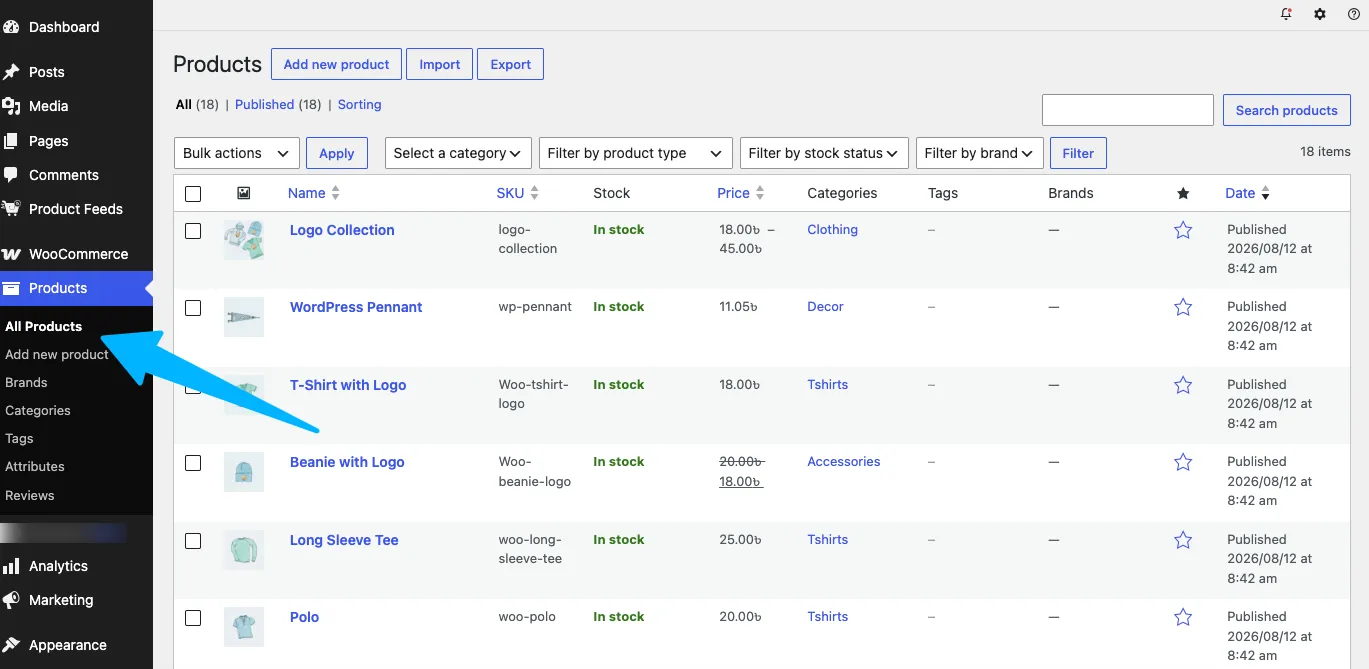
- From your WordPress dashboard, go to Products → All Products
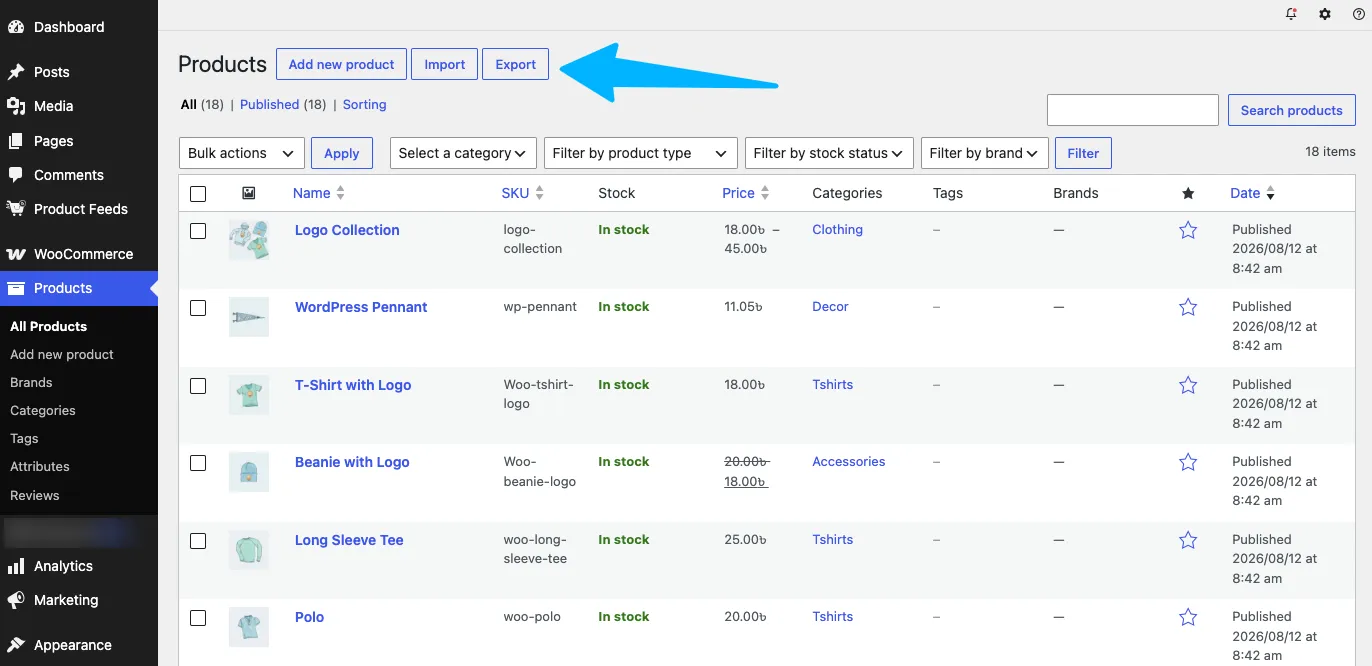
- Then you will get the import/export button above.
- Click on the export button
WooCommerce will open the product export screen where you can choose which product information you want to include.
Step 2: Choose the Product Data to Export

WooCommerce gives you four main choices when exporting your products. You don’t always need to export your entire catalog.
It lets you filter products by category, type, and stock status. This is useful when you only want to export a specific group of products.
For example, you could export only your clothing products or variable products instead of your entire store.
You can decide:
- What product information to include,
- Which product types to export,
- Which categories to include,
- And whether to export custom metadata.
1. Which columns should be exported?
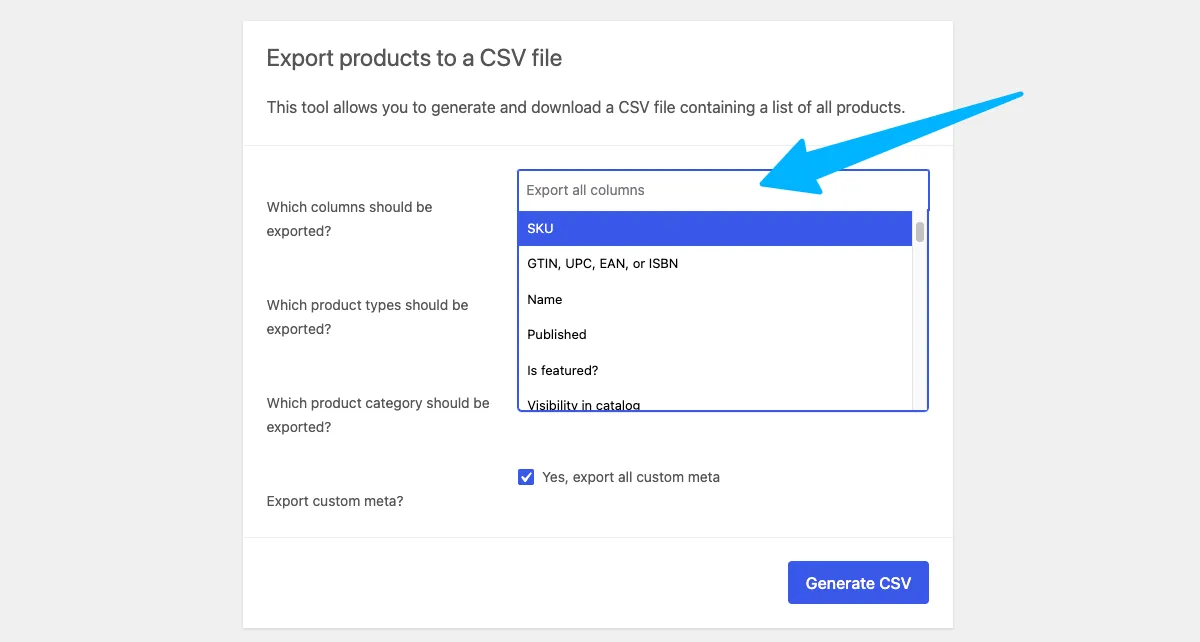
First, choose the product information you want to include in your CSV file. You can export details such as:
- ID — The unique ID WooCommerce uses to identify the product.
- Type — Shows whether the product is simple, grouped, external, variable, or a variation.
- SKU — The unique code used to identify and track the product.
- GTIN, UPC, EAN, or ISBN — Product identification numbers used to identify products across stores and marketplaces.
- Name — The product name or title.
- Published — Shows whether the product is published.
- Is featured? — Shows whether the product is marked as featured.
- Visibility in catalog — Shows where the product appears in your WooCommerce catalog.
- Short description — The short description shown on the product page.
- Description — The full product description.
- Date sale price starts — The date when the sale price begins.
- Date sale price ends — The date when the sale price ends.
- Tax status — Shows whether the product is taxable.
- Tax class — Shows the tax class assigned to the product.
- In stock? — Shows whether the product is currently in stock.
- Stock — Shows the available inventory quantity.
- Low stock amount — Defines the stock level at which WooCommerce considers the product low in stock.
- Backorders allowed? — Shows whether customers can order the product when it is out of stock.
- Sold individually? — Shows whether customers can purchase only one unit per order.
- Weight — The product weight in kilograms.
- Length — The product length in centimeters.
- Width — The product width in centimeters.
- Height — The product height in centimeters.
- Allow customer reviews? — Shows whether customers can leave reviews.
- Purchase note — A note customers receive after purchasing the product.
- Sale price — The discounted product price.
- Regular price — The standard product price.
- Categories — The categories assigned to the product.
- Tags — The tags assigned to the product.
- Shipping class — The shipping class assigned to the product.
- Images — The images associated with the product.
- Download limit — The maximum number of times a downloadable product can be downloaded.
- Download expiry days — How many days customers can access the downloadable product.
- Parent — Shows the parent product for a product variation.
- Grouped products — Shows the products included in a grouped product.
- Upsells — Products recommended as higher-value alternatives.
- Cross-sells — Products recommended alongside the current product.
- External URL — The URL used for an external or affiliate product.
- Button text — The text shown on the purchase button for an external product.
- Position — The product’s position or sorting order.
- Brands — The brands assigned to the product.
- Downloads — Information about downloadable files.
- Attributes — Product options such as size, color, material, or other characteristics.
If you’re moving your entire WooCommerce catalog, select all the columns or leave blank. If you only need to update prices, stock, or specific product information, select only the fields you need.
2. Which product types should be exported?
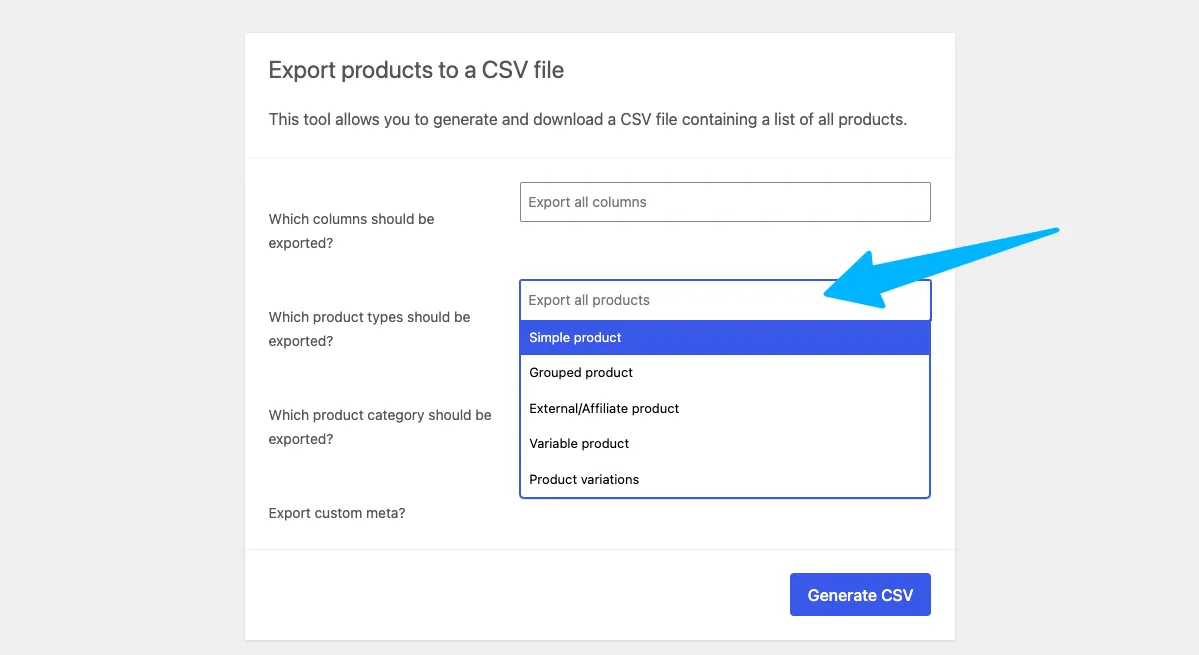
Next, choose which WooCommerce product types you want to include in your CSV. You can export:
- Simple products — Products without variations, such as a standard T-shirt.
- Grouped products — Multiple products displayed together as one group.
- External/Affiliate products — Products that send customers to another website to complete the purchase.
- Variable products — Products with different options, such as size or color.
- Product variations — Individual versions of a variable product.
For a complete store export, select all the product types you use or leave blank. If you only need a specific type, select that option.
For example, you can export variable products and product variations if you’re working with products that have different sizes or colors.
3. Which product category should be exported?
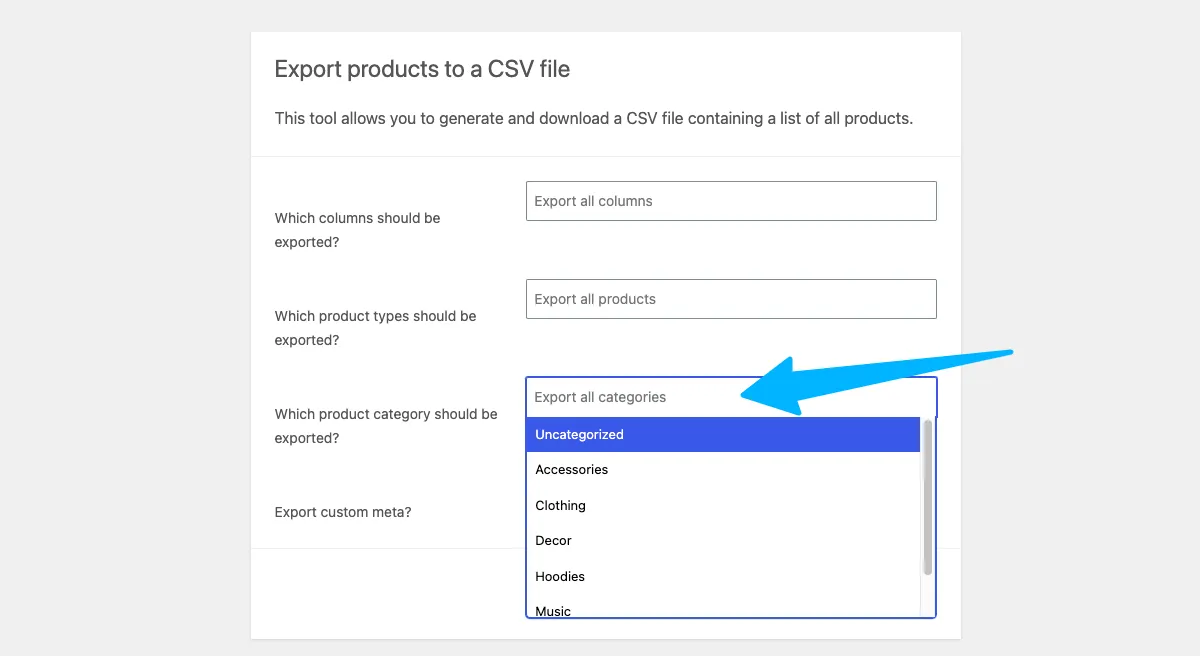
You can also choose which product category you want to export. For example, your store might have categories such as:
- Clothing
- Accessories
- T-shirts
- Hoodies
- Music
- Decor
- More
You don’t always need to export your entire catalog. If you’re working on one product line, choose that category instead.
For example, if you’re updating your clothing products, you can export only Clothing instead of exporting every product in your store.
4. Export Custom Meta
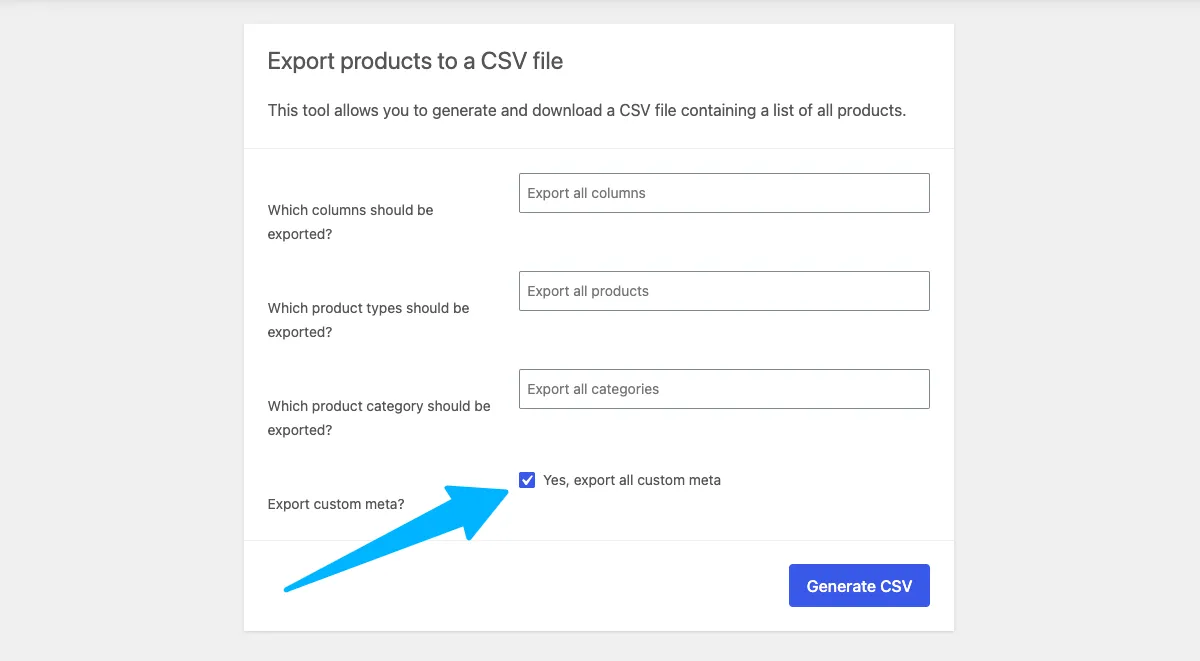
Finally, WooCommerce gives you the option to export all custom meta. Custom meta can contain additional product information added by your theme, plugins, or WooCommerce extensions.
If you’re moving your entire WooCommerce store and want to preserve as much product information as possible, select Yes, export all custom meta.
If you’re simply creating a CSV to update standard information such as prices, SKUs, or stock, you may not need to include custom metadata.
- For a full store migration: select all columns, product types, relevant categories, and custom meta.
- For a specific product update: select only the columns, product types, and category you actually need.
Step 3: Export and Download the CSV
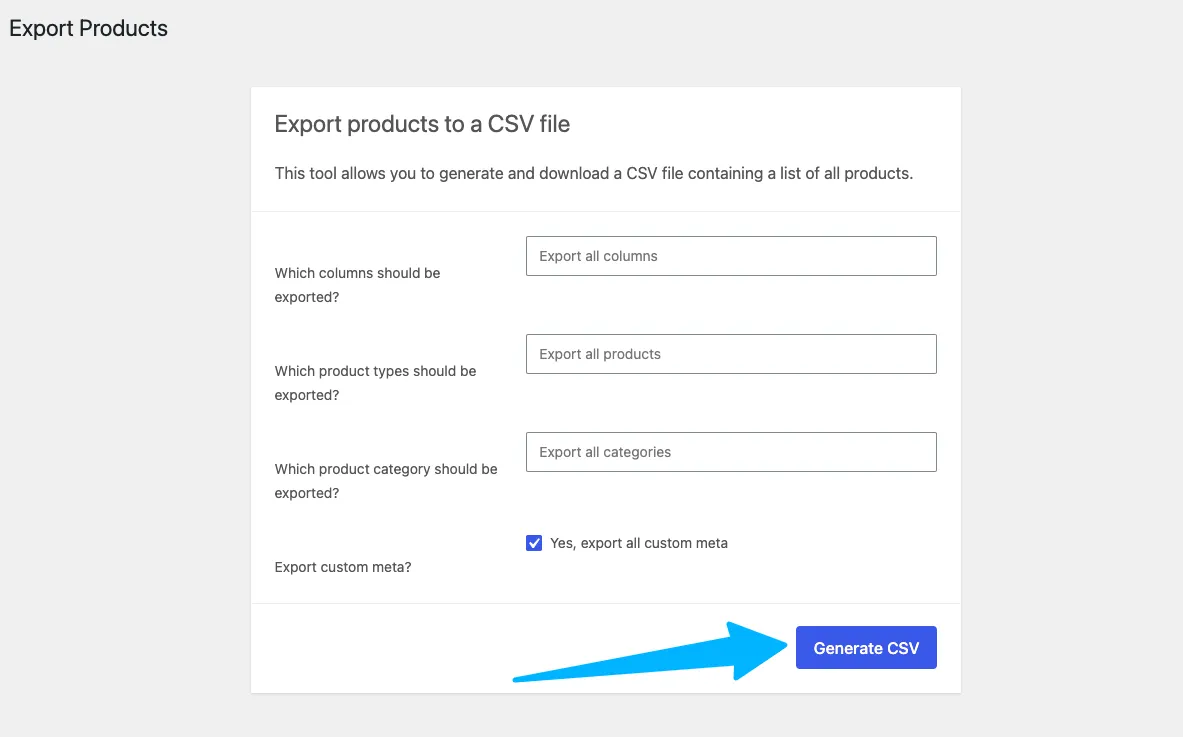
- Once you’ve selected your columns and filters, click Generate CSV.

WooCommerce will create your product file, which you can download and open in Excel or Google Sheets.
One thing to check: If your store has variable products, make sure the variations are included in your export. Otherwise, you may end up with the main product but miss important details such as sizes, colors, or variation SKUs.
How to Export WooCommerce Products to XML
CSV is usually the better choice when you want to edit your WooCommerce products. But if you’re moving your products from one WordPress site to another, XML can be a better fit.
I am really happy to let you know that WordPress already has a built-in export tool. You don’t need another plugin or a complicated setup.
Let’s walk through it step by step.
Step 1: Go to Export
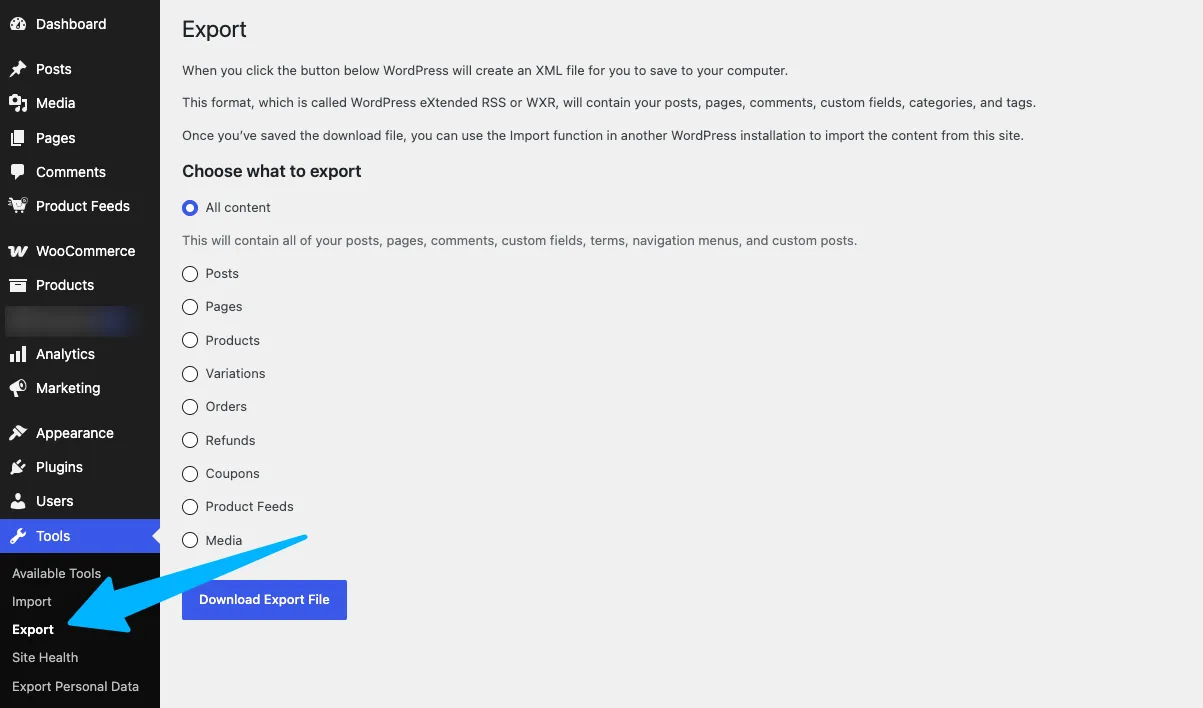
- From your WordPress dashboard, go to Tools → Export.
Unlike CSV export, which you access from Products → All Products → Export, XML export is handled through WordPress’s built-in export tool.
Step 2: Choose Products
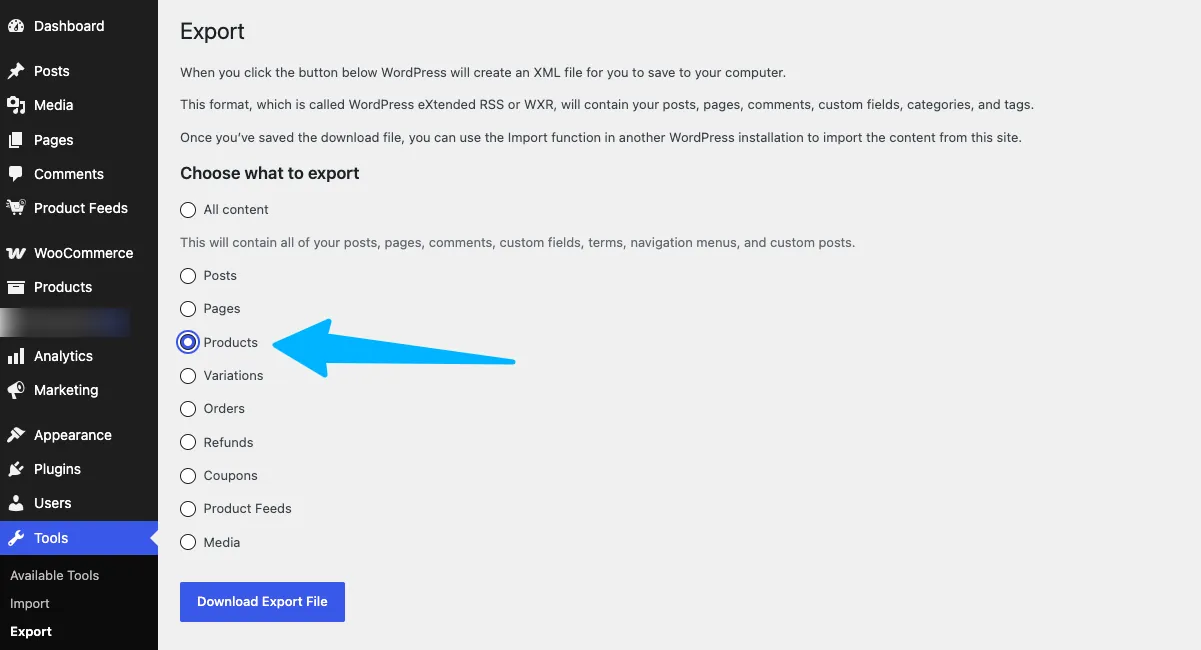
You’ll see different content types you can export from your WordPress site.
- Select Products.
This tells WordPress to export your WooCommerce product content instead of your blog posts, pages, or other content.
Step 3: Download Your XML File
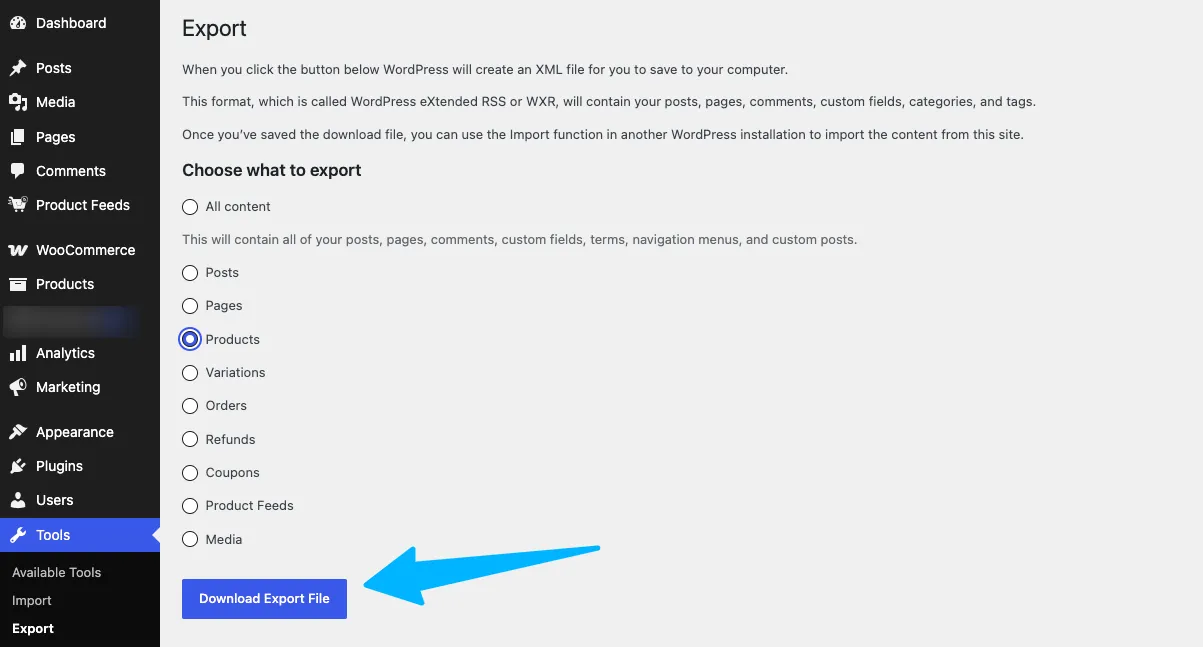
Once you select Products:
- Click on Download Export File
WordPress will create an XML file, technically known as a WXR file, containing your selected WooCommerce product data.
You can then use this file to move your products to another WordPress site.
Why Your WooCommerce Export Might Get Rejected by a Marketplace
Now I am telling you real things where the concept of export & import doesn’t work as we think.
Your WooCommerce CSV or XML export works well when you’re moving products from one WordPress or WooCommerce site to another.
But what happens when you try to send that same file to Google Shopping, Facebook, TikTok, or eBay? That’s where you may have problems.
These marketplaces don’t just want your WooCommerce product data. They expect your products to follow their own feed requirements, field formats, and product taxonomies.
Your WooCommerce export may be missing important information such as:
- Brand — The brand or manufacturer of the product.
- GTIN, UPC, or MPN — Product identifiers used to match products correctly.
- Availability — Whether the product is in stock, out of stock, or available for preorder in the format the marketplace expects.
- Condition — Whether the product is new, used, or refurbished.
- Product category — The marketplace’s category structure, which may be different from your WooCommerce categories.
- Shipping information — Shipping costs and details required by the destination platform.
- Additional marketplace attributes — Extra fields required for specific product types or channels.
So, a CSV that works perfectly when moving your WooCommerce products to another store may not work when you upload it to Google Shopping or 200+ more marketplaces.
The problem usually isn’t the export itself. It’s the format.
Your WooCommerce store organizes product data one way. Each marketplace has its own rules for how that data should be structured.
That’s why exporting your products and creating a marketplace-ready product feed are two different things.
If your goal is simply to move or edit WooCommerce products, CSV or XML may be all you need.
But if you want to send those products to multiple shopping channels, you’ll need to export as a feed that matches each platform’s requirements.
Turn Your WooCommerce Export Into a Feed to Sell on 200+ Marketplaces
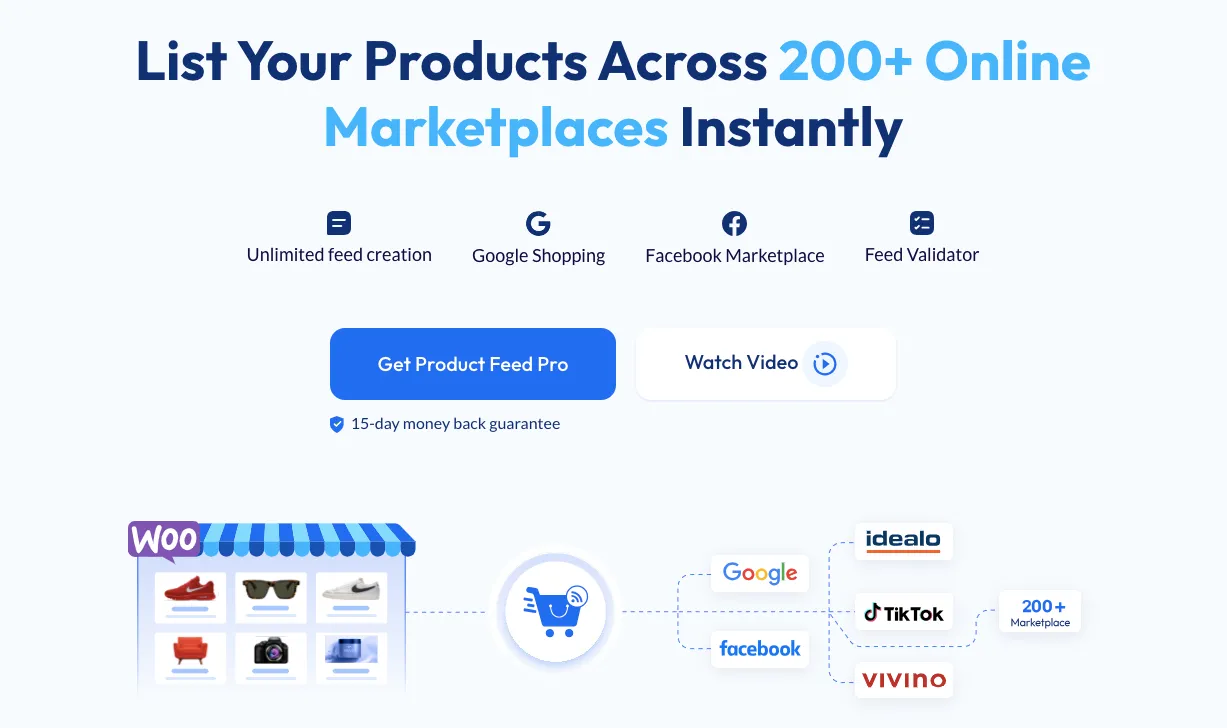
So what do you actually do if you want to sell beyond your own site? This is where a proper product feed comes in, and it’s a different thing from the export you just did.
A feed takes your product data and reshapes it to match exactly what each marketplace wants — the right fields, the right format, the right category mapping automatically.
Product Feed Manager by Rextheme does exactly this for WooCommerce. Instead of you manually rebuilding columns for every channel, it comes with pre-built templates for 200+ marketplaces and ad platforms.
Here’s what that actually looks like:
- Pick the marketplace you want (Google Shopping, Facebook, TikTok, and 200+ others).
- The plugin auto-maps your product fields to what that channel requires.
- Review it, hit publish, and your feed goes live.
One store owner I talked to went from a rejected Google Shopping feed to a fully approved one in under 20 minutes, without touching a single column by hand.
If you’re only migrating sites, your free CSV or XML export is all you need. But if more marketplaces or ad platforms are the goal, a mapped feed is what actually gets you through the door.
Even you can make a product feed for free for 200+ products. Multiple Marketplace means million visitors are already searching for your products on those websites.
CSV vs. XML vs. Feed - Which Should You Use for Exporting?
| Use Case | CSV | XML | Product Feed |
|---|---|---|---|
| Move products to another WooCommerce site | Yes | Yes | Not needed |
| Edit product details in bulk | Best choice | Not ideal | Not needed |
| Move product data between WordPress sites | Yes | Best choice | Not needed |
| Send products to Google, Facebook, Amazon, or TikTok | Not ideal | Not ideal | Best choice |
| Keep products updated across marketplaces | Manual | Manual | Automatic |
Conclusion
Exporting WooCommerce products is simple with the built-in CSV and XML tools. You can use them to move or edit your product data easily.
The challenge starts when you send that data to marketplaces. Each platform has different fields, formats, and category requirements.
If you’re moving your store, CSV or XML is usually enough. You don’t need a separate tool just for a basic export.
But if you want to sell across 200+ marketplaces, a product feed can save you from manually formatting the same products again and again.
Frequently Asked Questions
How can I export only specific products from WooCommerce?
You don't need to export your whole catalog every time. Choose a specific product category or product type before exporting. This makes the file smaller and easier to manage.
What if my product variations are missing from the export?
This often happens when variations aren't selected during export. Make sure Product variations are included before downloading the CSV. This keeps sizes, colors, and other options with your products.
Why isn't my WooCommerce CSV accepted by Google Shopping?
A regular WooCommerce export may not include all the fields Google requires. Google may need details such as GTIN, brand, condition, and category mapping. You need a marketplace-ready product feed for those requirements.
How can I avoid updating marketplace products manually?
Every price or stock change can mean another manual update. A product feed can automatically sync your WooCommerce data with supported marketplaces. This saves time when you manage many products.
Do I need a plugin to export WooCommerce products?
No, WooCommerce already includes basic CSV, and WordPress includes XML export. You only need a plugin when you need advanced feeds, marketplace formats, or automation. Product Feed Manager by Rextheme is especially useful when selling across multiple channels.
Written by
MD Zannatun Nime
August 13, 2026
MD Zannatun Nime writes about WordPress, developer tools, and web design in a simple and easy-to-follow way. He enjoys making complex topics clear, practical, and useful for everyday readers.
Related reading

WOOCOMMERCE
WPSubscription V2.0 Review: WooCommerce Subscription Plans Management
A hands-on review of WPSubscription 2.0. Explore centralized subscription plans, real-time metrics dashboards, retention offers, and practical use cases for WooCommerce stores.

WOOCOMMERCE
7 Essential WooCommerce Tools for Personalized Products
WooCommerce tools for custom products help you manage personalization, pricing, SEO, checkout, shipping, and repeat sales through one coordinated store workflow.

WOOCOMMERCE
Best AI Product Recommendation Plugin for WooCommerce
Looking for the best AI product recommendation plugin for WooCommerce? Learn how AI recommendations work, compare top plugins, and set up personalized product suggestions step-by-step.